Create.
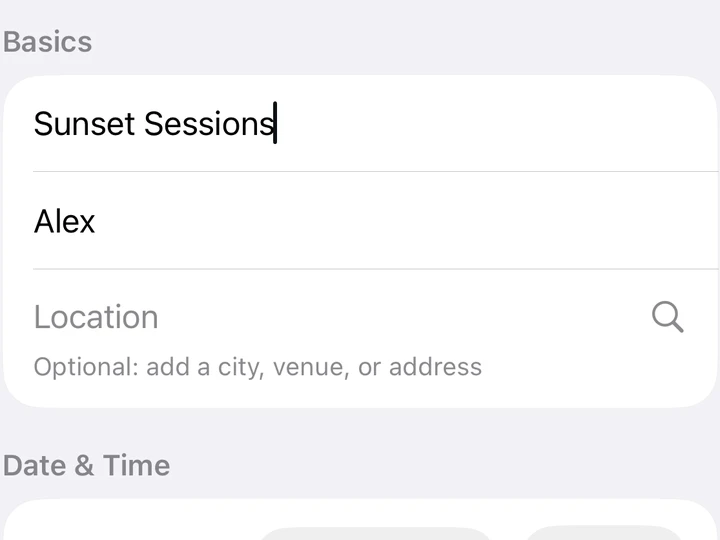
Name your Moment and record or add a clip.
 Stelli
THE STELLI GUIDE
Create a Moment, invite your people, and choose when the audio plays. Here’s how to make it happen.
Start with the basicsNo matching topics. Try “record”, “invite”, or “photos”, or clear your search.
START HERE
You don’t need an existing audio library. Start by recording something you want to share: a welcome, a cheer, some atmosphere, or a memory.
Name your Moment and record or add a clip.
Send the invite link or share the six-character code. Guests using Safari need the full invitation link, with no app or account required.
Once your Guests are ready, choose a clip and start playback.
Each person listens on their own phone with an internet connection. Hosts and Guests using the Stelli app need separate accounts. Invited Safari Guests need no app or account.
FOR HOSTS
The cover is part of the Guest experience and is available to review in Edit Moment. It is separate from the Photo Gallery.
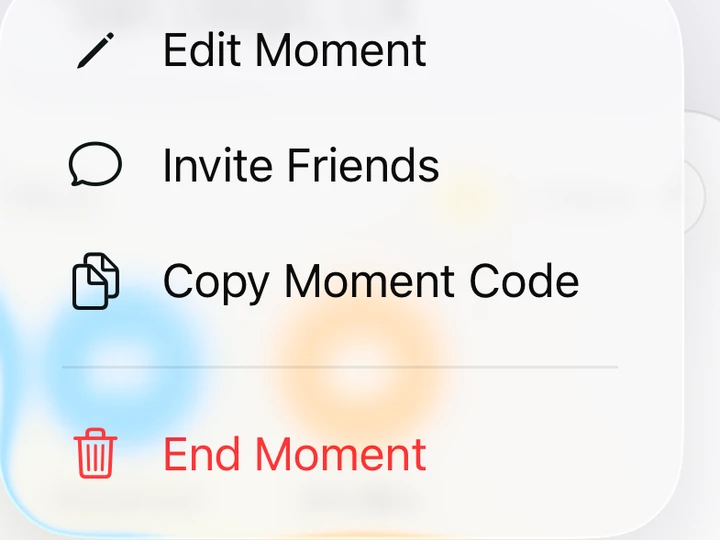
When you’re finished hosting, choose Actions → End Moment. Closing the dashboard simply takes you back; it does not end the Moment.
In Stelli, open an active private/shared Moment and tap Invite to share its full invitation link. The same link opens the installed app or offers browser listening. Browser invitations are for eligible private/shared Moments with Discover off.
A six-character code remains an option for Guests joining inside Stelli; it does not replace the full browser invitation.
Sign in, then open the invitation or enter the Moment code using the join action. Open the joined Moment and get ready to listen.
Use the Guest’s Leave action to exit. To join again, open an available invitation or use the current code unless the Host has removed your access.
No Stelli installed? Follow the Safari listening steps. Keep the complete invitation private and share it only with people you want to invite.
NO APP OR ACCOUNT NEEDED
Switching apps or locking your screen stops browser playback. Reopen Safari and enable audio if prompted, then wait for the next cue. A clip may be skipped if your phone is not ready in time. An internet connection is required; preparing audio uses data and cellular charges may apply.
Browser access can expire or be revoked. If an invitation no longer works, ask the Host for a fresh one. Browser listening covers the Host-led audio experience; hosting, Discover, Clip Library, photos and account settings use the Stelli app.
Record a short test first to check your level and surroundings. Music, ambience, cheers, and spoken recordings can all be part of a Moment; only share audio you have permission to use.
Your Clip Library keeps your audio ready to use in Moments. Choose a saved clip when adding audio to a Moment; removing its playlist entry does not delete the saved Library asset.
Importing is optional. Use the import action in Clip Library and choose an M4A, MP3, WAV, or AAC file from Files. Imports must be 100 MB or smaller, and duration limits depend on your plan. Wait for validation and upload to finish.
Adding a clip to a Moment makes it available in that Moment. Your private Library is not a shared folder for Guests.
The Host controls playback for app and browser Guests. Give everyone time to join and enable audio before cueing a clip.
For the best synchronized playback, use a stable Wi‑Fi or cellular connection and keep Stelli open. Clips can also play in sync while Stelli is in the background or your device is locked, provided you remain joined to the Moment, the clip finishes preloading, and your device receives the playback cue in time. Network conditions and device background restrictions can prevent playback. If a device isn’t ready before the scheduled start, Stelli skips the clip on that device rather than playing it late.
Stelli preloads upcoming clips using your internet connection. Data use depends on clip size and whether a download is needed; cellular charges may apply.
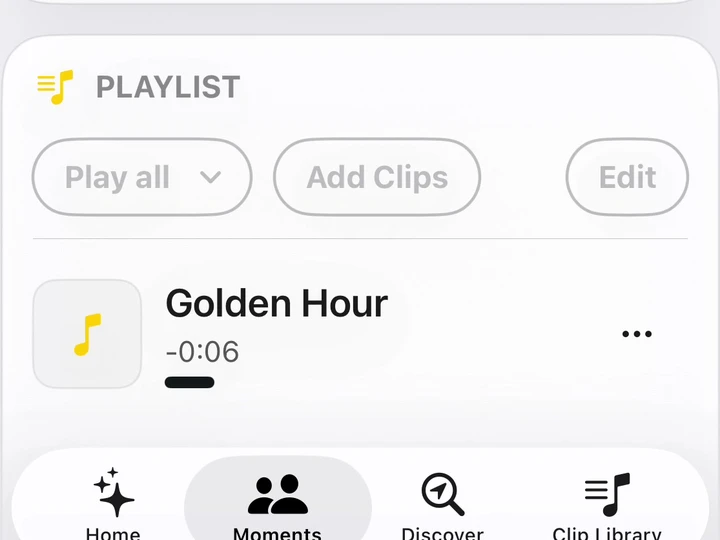
The Host controls playback in a Host-led Moment. Use the clip and playlist controls to prepare the next sound, start it, pause, or stop. Use Queue Next when you want to announce the next clip, or the playlist controls to play a sequence. A heads-up lets you notify Guests before a clip starts.
Give Guests time to join and get their audio ready before starting. If Stelli says some Guests aren’t ready, wait for them or use the offered start-anyway option knowing they may miss the synchronized start.
As a Guest in Stelli, open the joined Moment, check your volume, and follow the Host’s cue. Headphones are useful when you want to listen personally without adding sound to the room.
Browser Guests must keep Safari open and the screen unlocked. Turn off Silent Mode and tap Enable audio before playback. Follow the Safari Guest steps.
These controls are available in the Stelli app, not browser listening.
Choose or change this in Edit Moment. Let the image finish saving before leaving. The cover and your profile avatar are two different images.
Hosts add Moment photos from the gallery controls. Guests can use Add Photos when the Host has enabled contributions.
Guest contributions wait for Host approval before appearing in the shared gallery. Hosts can approve or decline pending photos; Guests can withdraw their own pending submissions and remove their own shared photos.
Discover is a different way to listen: open an available nearby Moment and explore its recorded audio at your own pace. Sign in and allow location access so Stelli can show what is available within the Moment’s listening area.
Hosts can configure a Moment for Discover with a location, listening radius, and recorded content. Review the Discover settings before publishing; an ordinary private invitation does not automatically publish a Moment to Discover.
Follow Hosts you want to hear from again. In Settings, you can choose whether to be notified when followed users start new Moments and when you gain a follower.
In the Stelli app, open a Moment’s safety controls to report content or block its Host. For a report, choose a reason, add useful details, and submit. Blocking a Host and reporting content are separate actions.
Review or unblock Hosts in Settings → Safety → Blocked Hosts. Hosts can manage Guest access from the People controls, including removing a Guest when needed.
For help, choose Contact Stelli Support in Settings or email support@stelliapp.com. Please describe what happened without including passwords or verification codes. See our Community Guidelines for what belongs on Stelli.
Playback conditions apply to both Free and Host Plus. A subscription expands Host limits; it does not guarantee synchronized or background playback. Read the playback conditions before subscribing.
You can start on Stelli Free. Host Plus expands the Host’s limits; Guests don’t need the Host’s subscription to join an invitation.
| Feature | Stelli Free | Host Plus |
|---|---|---|
| Active or published Moments | 2 | No count limit |
| Clips per playlist | 3 | No count limit |
| Recording or import length | Up to 5 minutes | Up to 60 minutes |
Open Settings → Host Plus for current subscription options, pricing, and purchase restoration. Manage or cancel renewals through your Apple Account’s subscription settings. Deleting Stelli or your Stelli account does not cancel an Apple subscription.
In Settings, update your profile name, avatar, and bio; manage notification preferences; choose playback behavior when your device is muted; and turn sound effects on or off.
Settings also contains support, blocked Hosts, Host Plus, and links to the Privacy Policy and Terms of Service. Account deletion is available there too; follow the confirmation steps and keep the deletion receipt if you need to check its progress.
Use the full, current invitation. Browser Guests do not need to sign in; if browser access has expired or been revoked, ask the Host for a fresh link. For app joining, sign in and use the invitation or all six characters of the current code. Ask the Host whether the Moment is still available. If you blocked the Host, review Blocked Hosts in Settings. A Host removal can also prevent rejoining.
For the best synchronized playback, use a stable Wi‑Fi or cellular connection and keep Stelli open. Clips can also play in sync while Stelli is in the background or your device is locked, provided you remain joined to the Moment, the clip finishes preloading, and your device receives the playback cue in time. Network conditions and device background restrictions can prevent playback. If a device isn’t ready before the scheduled start, Stelli skips the clip on that device rather than playing it late.
In Safari, turn off Silent Mode, turn up media volume, check the selected output and tap Enable audio. Keep the page open and screen unlocked. In Stelli, check your volume, selected audio output, and internet connection. Reopen the joined Moment and wait for the Host’s next cue. Check the muted-device playback preference in Settings. If a recording is still uploading, let it finish first.
Wait for the upload to complete. A Guest photo also needs Host approval. For a Custom Image, open Edit Moment to check the saved cover; it is separate from the Photo Gallery. If saving fails, retry while connected.
Check your plan’s duration limit. Imports also need a supported audio format and must be 100 MB or smaller. Use a shorter recording or file, or review Host Plus in Settings.
Stelli uses one active device session per account. For a Host-and-Guest setup inside Stelli, use a different account on each phone. An invited Safari Guest does not need an account.
Guide updated November 16, 2026. Back to top ↑